Kaggle Integration
Desktop only.
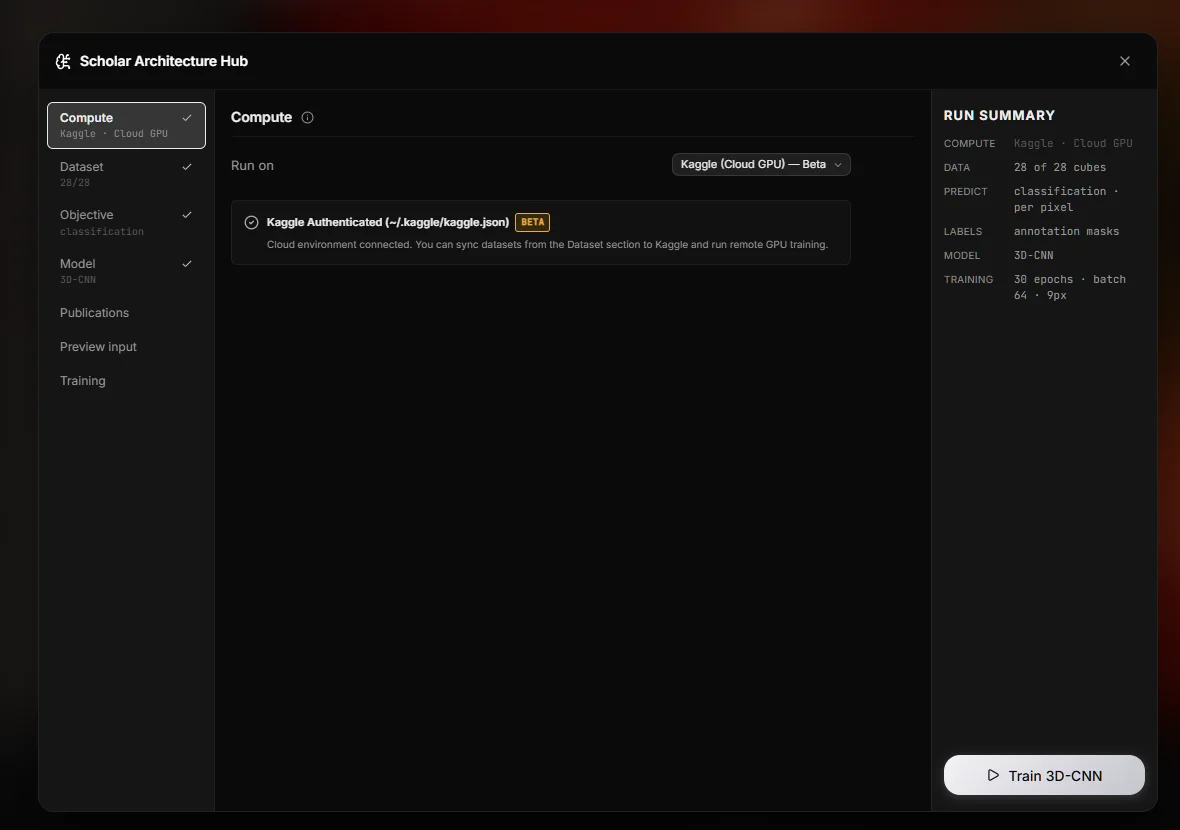
Hyperspectral training wants a GPU, and not every machine has one. HSI Studio can push a dataset to Kaggle, run training there on a free T4 or TPU, and pull the results back — without you leaving the app or touching a notebook.
Setup
You need a Kaggle account and an API token (kaggle.json, from your Kaggle account settings) placed where the Kaggle CLI expects it. The Hub checks for valid credentials and tells you if they're missing or expired.
Browsing and downloading datasets
The dataset browser searches Kaggle's public datasets and lists your own. Download one and it lands in a local folder, which HSI Studio then registers as a Library dataset — so a public benchmark goes from "I found it" to "I'm looking at it in the viewer" without a manual download-unzip-import cycle. Downloads report progress and can be cancelled.
Syncing your dataset up
Connect Kaggle Dataset takes a Library dataset and pushes it to Kaggle. You choose:
- Which files to include, individually.
- The Kaggle dataset id — either a new one derived from the dataset name, or an existing one you own. If the dataset already exists, HSI Studio uploads a new version rather than failing.
- Upload mode — flat files, or a single archive. Archive mode is faster to upload for many small files; flat mode keeps files individually addressable.
- Compress cubes — recompresses
.npzcubes before upload. Hyperspectral cubes are large and often poorly compressed by whatever wrote them; this can cut upload time substantially.
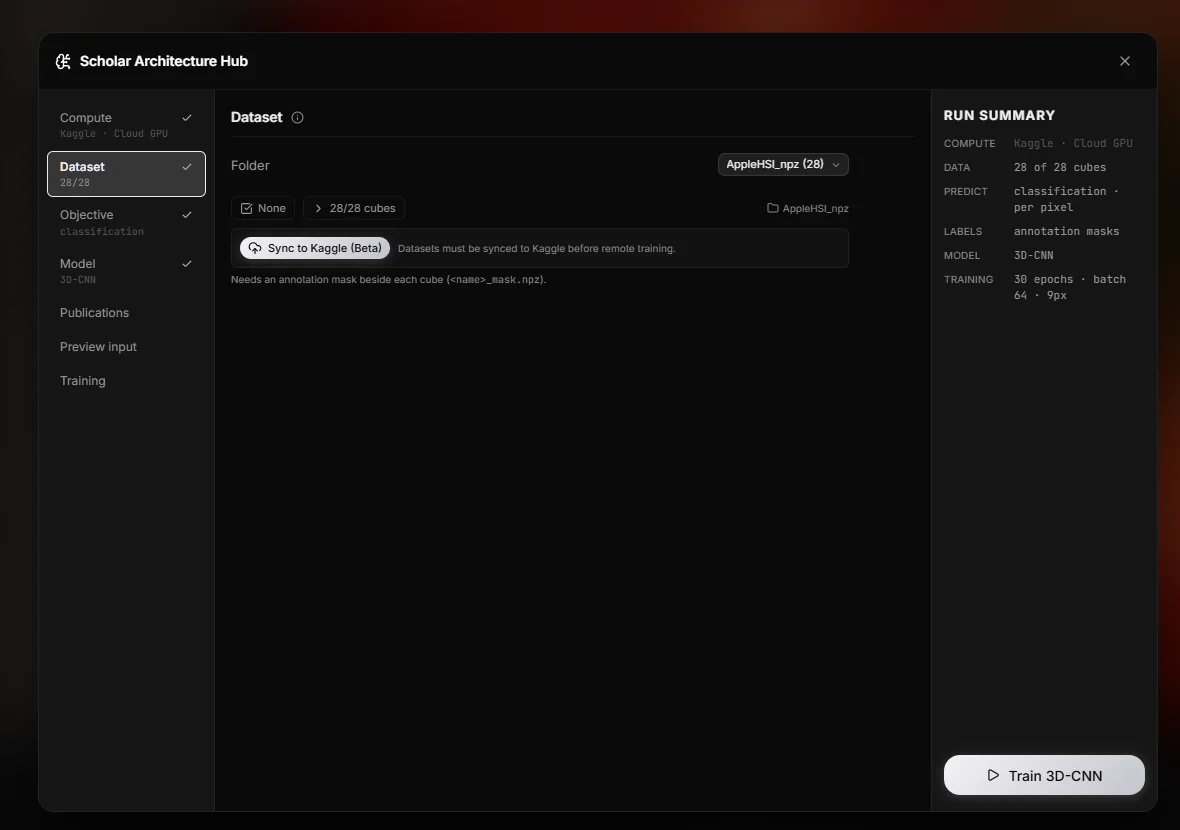
Before uploading you get a size estimate, so a multi-gigabyte surprise is visible in advance.
During the sync you get per-file and overall progress, transfer rate, per-file and overall ETA, and the raw log. Uploads run several files in parallel and can be cancelled. The sync panel can be minimised to a sidebar widget while it runs.
Checking your quota
Kaggle gives free accounts a weekly allowance of accelerator time. The Hub reads your remaining GPU and TPU quota and the refresh time directly from Kaggle's API and shows it next to the accelerator picker — so you find out you're out of hours before starting a run, not thirty minutes into one.
Running training remotely
Set Run on to Kaggle (cloud) in the ML Hub's Compute section, choose an accelerator (CPU only, GPU — Tesla T4 ×2, or TPU), and start the run. HSI Studio:
- Prepares the run and resolves the dataset.
- Waits for Kaggle to finish processing the uploaded dataset.
- Publishes the training code as a notebook.
- Pushes the notebook and queues it.
- Runs it, streaming the log back to the training monitor.
- Downloads the results — checkpoint, metrics, logs — into a local run directory.
Your model configuration, task setup and architecture spec are carried into the remote run unchanged; it's the same trainer that runs locally, executed on Kaggle's hardware.
Runs outlive the window
A Kaggle run keeps going after you close HSI Studio — it's executing on Kaggle, not on your machine. So on startup the app checks for an active run and, if it finds one, reattaches to it and resumes streaming progress into a floating pill. You can close the app mid-run and come back to a finished one.
A run can also be detached deliberately and reattached later by kernel id.
Where the results go
Completed remote runs appear in the same run history as local ones, with the same metrics, the same charts, and the same classification report. Reveal a run to open its output directory on disk.