The Library
Desktop only. The Library reads folders from disk, which the browser sandbox doesn't allow.
The Library turns a folder of captures into a browsable dataset. It's the difference between opening cubes one at a time and working with a dataset as a unit.
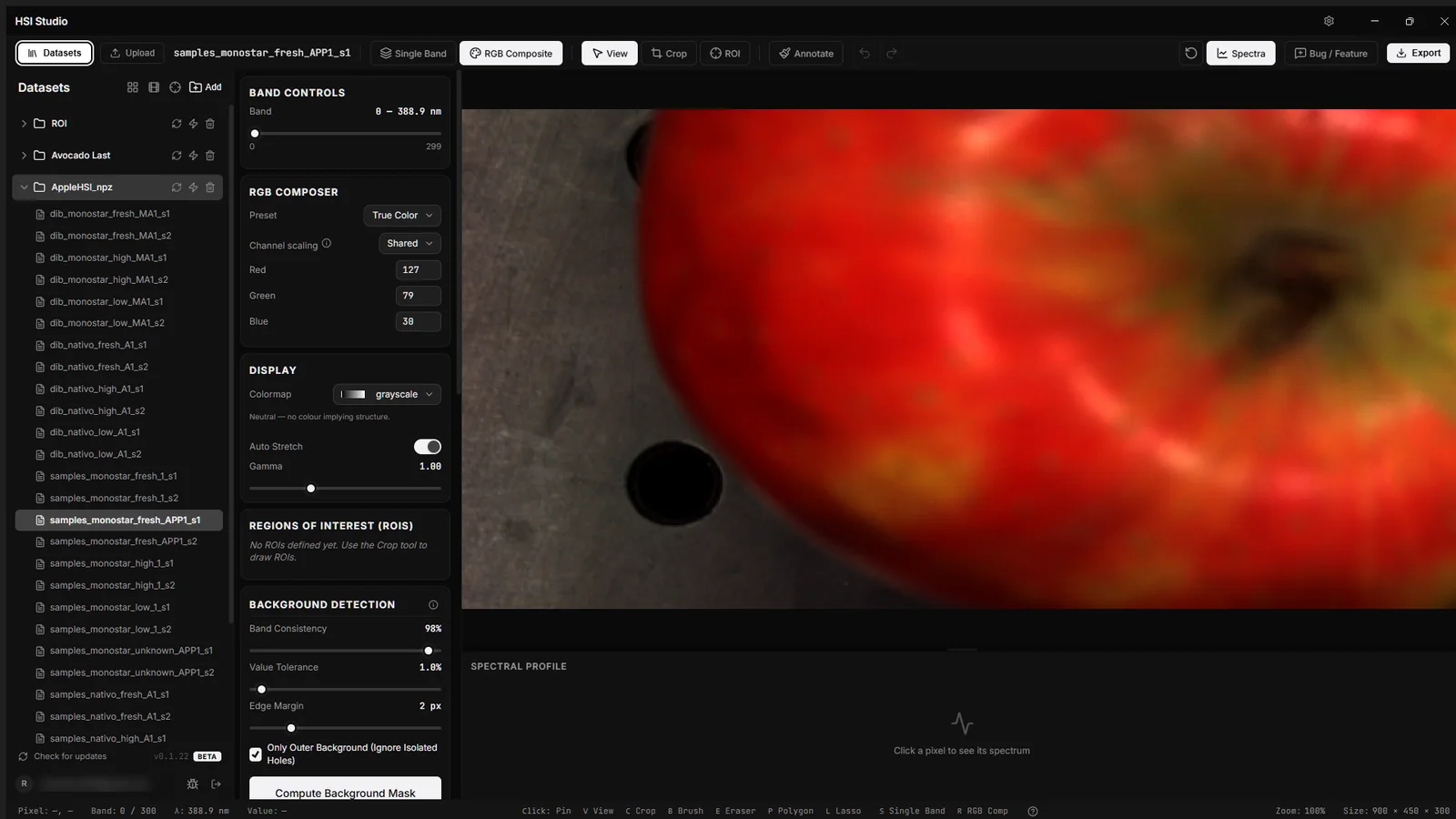
Importing a folder
File → Import Dataset Folder (Ctrl/Cmd+Shift+O). HSI Studio walks the folder recursively and collects everything matching the formats you've enabled.
Scanning rules worth knowing:
- ENVI binaries are always collected, whether or not
.dat/.raw/.biletc. are ticked. They're never listed on their own — they exist so a.hdrcan find its companion. Pairing doesn't depend on a checkbox. - Naming — entries can be named by their filename or by their parent folder. Parent-folder naming is what you want when each capture sits in its own directory.
- Exclusion filter — comma-separated terms, matched by contains, starts with, or ends with, case-insensitively. Use it to skip
_mask,_preview, or a results directory. - Results folder — name a subfolder to treat as output rather than input, so processed files don't get rescanned as sources.
- Class inference — when captures are organised into per-class folders, the folder names are picked up as class labels, ready for training.
Datasets persist between sessions. The file list is rescanned on load rather than stored, so moving or adding files on disk is picked up automatically.
Browsing
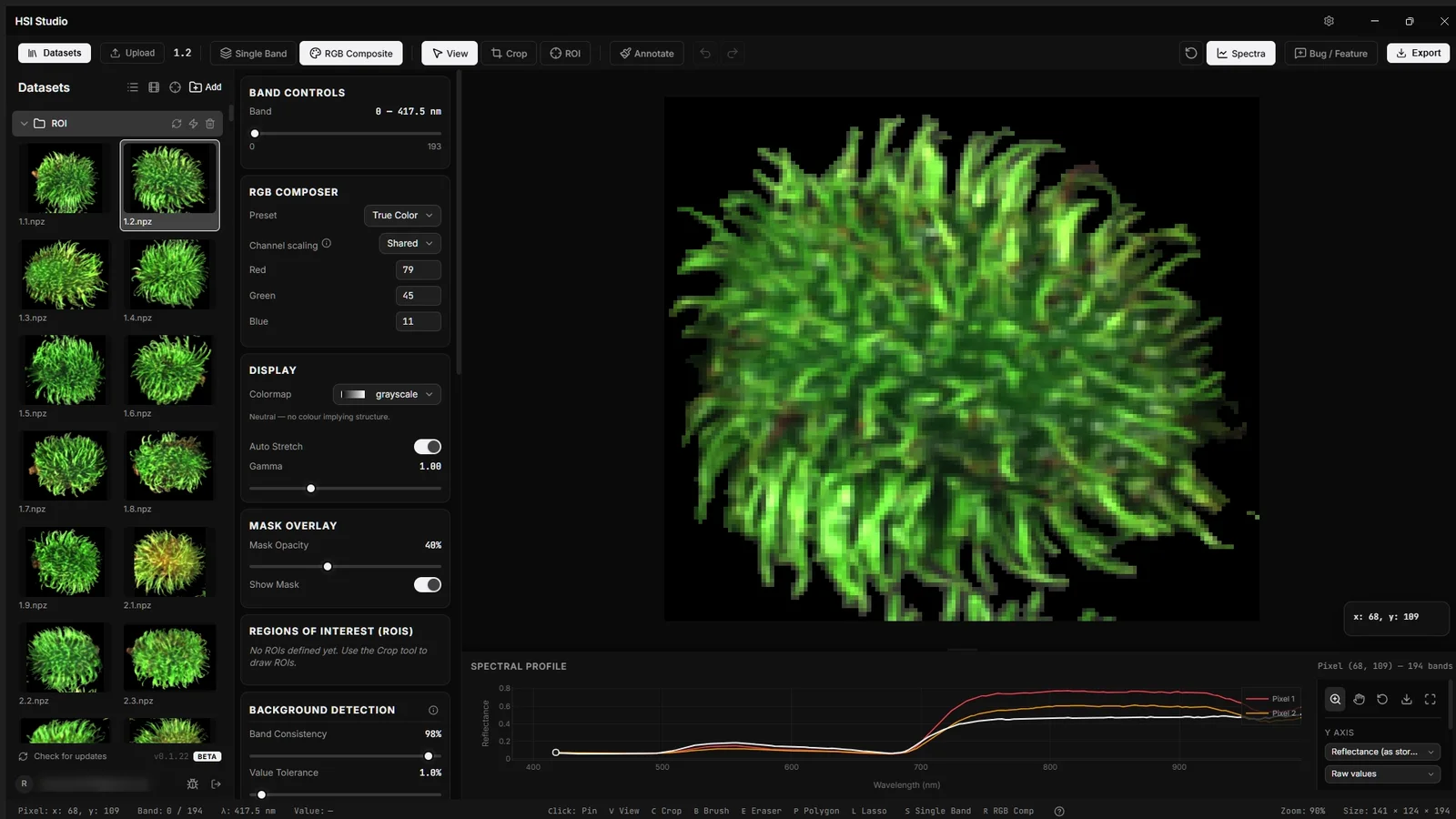
The Library sidebar lists datasets in list or tree view. Thumbnails are generated in a background worker and cached, so a folder of hundreds of cubes scrolls smoothly. Clicking an entry opens it in the viewer.
HSI Studio also looks for a matching mask alongside each cube, trying the conventional names — <name>_mask.npz, <name>_labels.npz, <name>_gt.npz, <name>-mask.npz, <name>.mask.npz — and loads it as annotations if found.
Batch operations
Tools → Batch Operations (Ctrl/Cmd+B). Select files, build a chain of steps, and run it across the whole selection.
| Operation | What it does |
|---|---|
| Rotate | 90°, 180° or 270° |
| Convert Format | Between ENVI and NPZ |
| Subset Bands | Extract a wavelength or band-index range |
| Downsample | Reduce spatial resolution |
| Auto ROI (beta) | Find each subject and crop it into its own file |
| Remove Background (beta) | Zero out saturated background pixels |
| Auto Band Removal (beta) | Drop noisy bands by signal-to-noise ratio |
| Run Python Script (beta) | Run your own .py against each datacube |
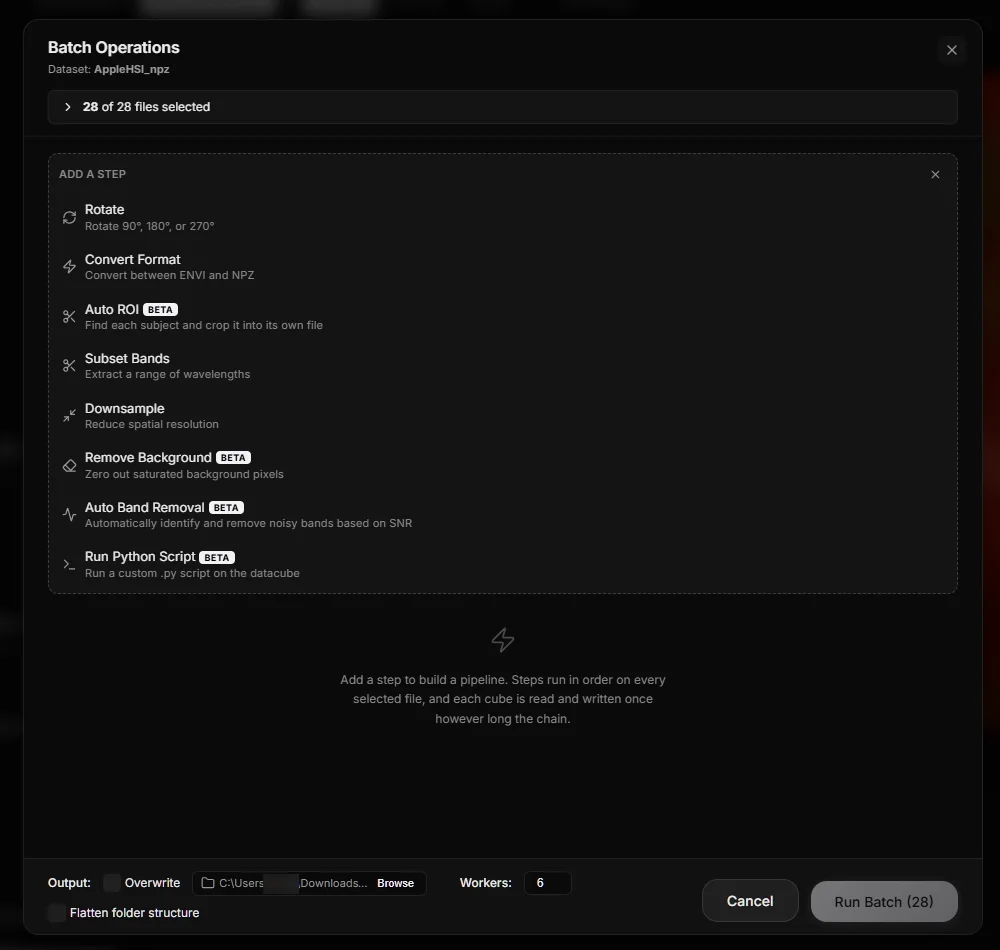
Steps run as a chain in order, so "subset bands → remove background → convert to NPZ" is one pass over the data, not three.
Before running you get:
- An output size estimate for the whole job.
- A preview for Remove Background and Auto ROI, rendered on a single file with the same detector the batch will use — so you can tune parameters against a real result rather than guessing.
While running you get per-file and overall progress, and the job can be cancelled. Concurrency is configurable; it processes several files in parallel in worker processes.
Output options:
- Write to a chosen directory, or overwrite in place.
- Flatten the folder hierarchy or preserve it.
- Naming strategy: original filename, N levels up, or the root folder name — which matters when flattening would otherwise collide identically-named files from different directories.
The batch panel can be minimised to a pill while it runs; the job keeps going and you can carry on using the viewer.
Time series
Time Series groups multiple captures of the same scene into frames of a single loaded cube, so you can step through them on the timeline while keeping band, colormap, contrast and annotations fixed. Useful for drying curves, degradation studies, or any repeated capture of one subject.